Ethernet WiFi Settings...
Accessing Device Functions
Use the Ethernet WiFi Settings... Function to perform the following tasks:
- Connect to a WiFi-based network
- Scan for available WiFi networks
- Join discovered available WiFi networks
- Disconnect (Forget) from a previously joined WiFi network.
To connect to the WiFi-enabled Device & Scan for Available Networks
- Establish the applicable Address Book connection to the device.
- Upon connection, from the Functions menu select Ethernet WIFI Settings...
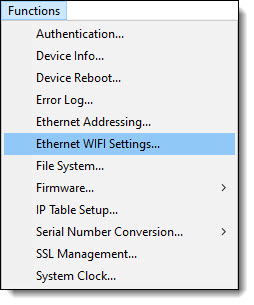
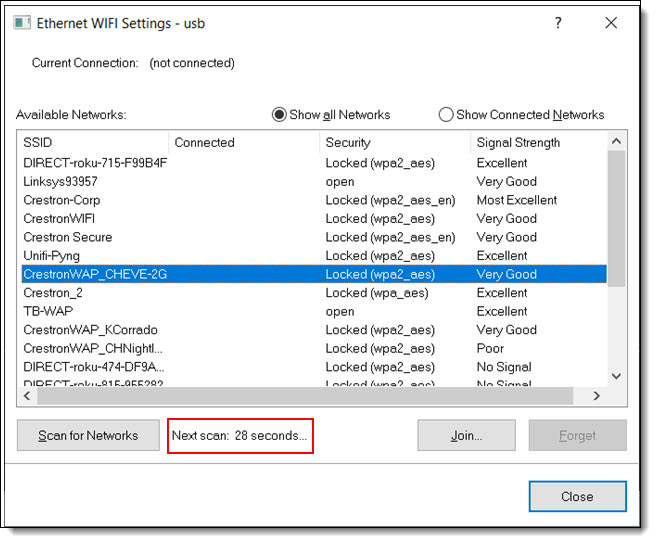
At launch, the Ethernet WiFi Settings... Function automatically scans for Available Networks.
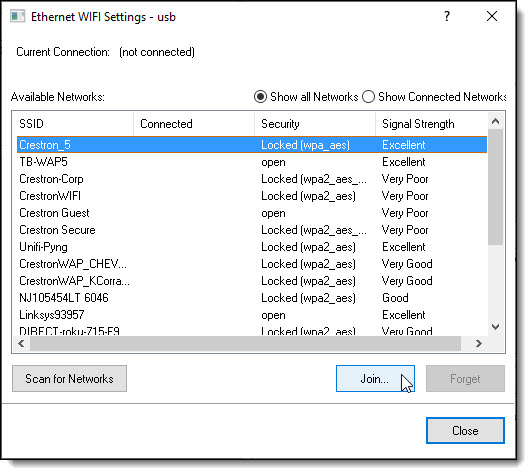
- Optionally, select the Show all Networks or Show Connected Networks radio button as applicable and click the Scan for Networks... button to re-scan, if necessary, for Available Networks:


- Click on the applicable network in the Available Networks list box and then click the Join... button:
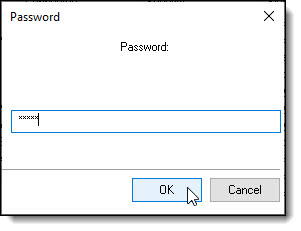
- In the Password dialog box, enter the WiFi network's password and click the OK button:
After Joining a network -or- Forgetting a network (see below), the device will reboot. The function will rescan for networks after 30 seconds:
Notes:
- The password is validated upon a subsequent connection to the WiFi Network that was joined.
- A maximum of one (1) WiFi network connection is permitted.
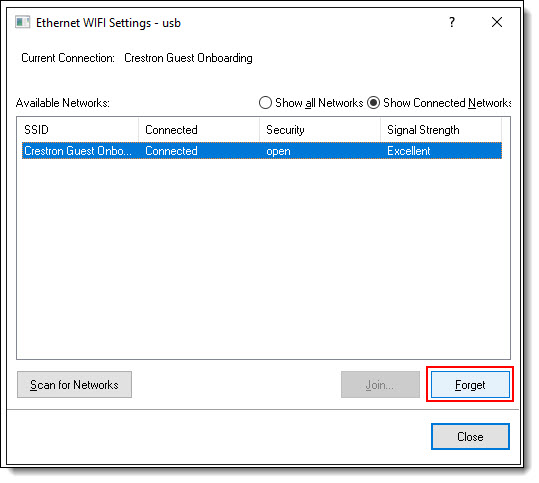
- To disconnect from the joined WiFi network, click on the network that was joined in the Available Networks list box and then click the Forget... button: